Personalisation in email & SMS marketing
Improving relevance, engaging and retaining customers.


Why we built the eNudge Action Responder, and how it sends the right follow-up to every contact based on how they respond.
Have you ever received a couple of emails inviting you to an event, finally decided to go on the third one, registered and paid, and then a few weeks later received another email inviting you to the same event?
If you are like me, that frustrates you no end. Now you have to check whether you did register, or whether your payment went missing. It also looks unprofessional, and it quietly tells your audience that the organisation sending the email isn't really listening.
Most event promotion follows the same rhythm: an invitation, a reminder, a "last chance" email, then details for the day. When every contact receives every message, the schedule works well for the people who haven't decided yet and badly for everyone else.
The usual workaround is to export registrations, cross-check them against your list, and build a fresh segment before every send. It's slow, it's easy to get wrong, and it has to be repeated each time someone new registers.
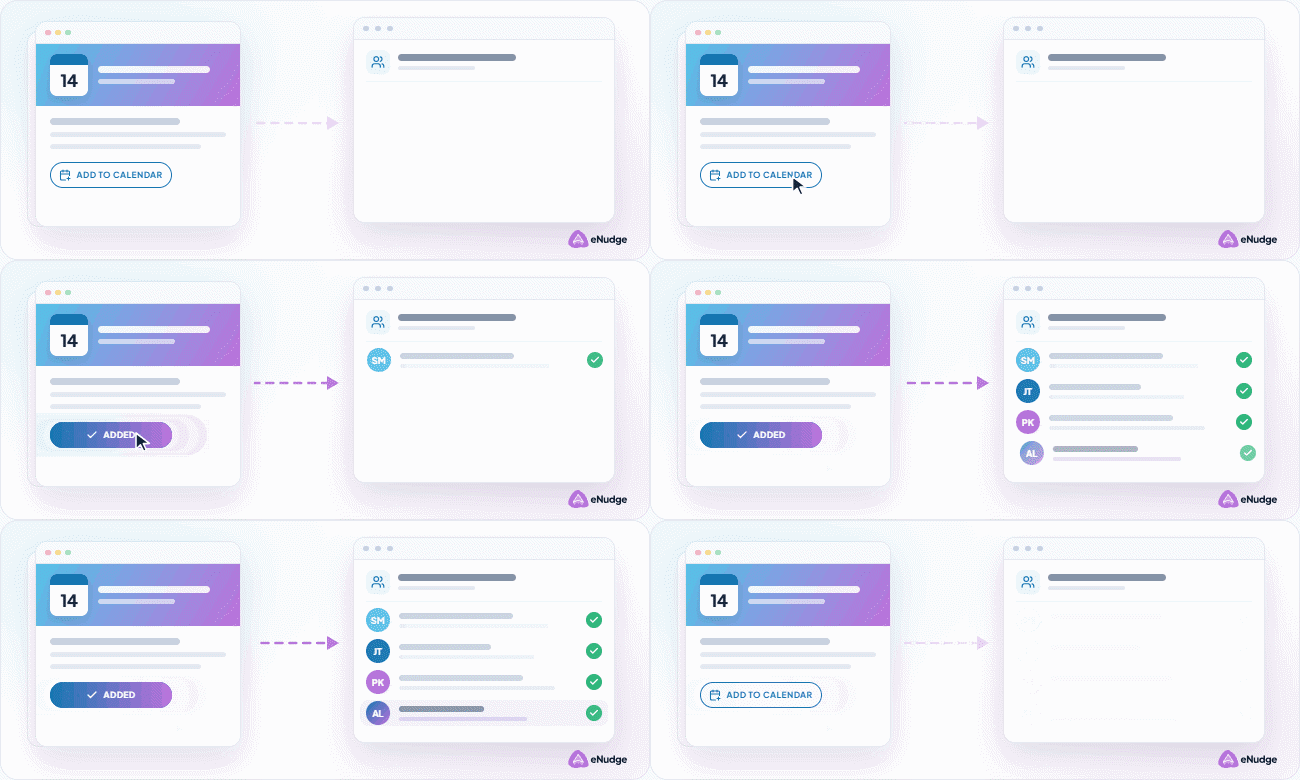
The eNudge Action Responder lets you automate a different set of messages for each contact, based on the action they take. Every email in the series carries two tracked links, a "yes" and a "no", and eNudge records which one each person clicks. From then on, each message in the series is only sent to the people it was written for.
For an event, that might look like this:
Nobody gets a message that contradicts what they've already told you.
The Action Responder is a special type of eNudge Message Series, so it helps to understand how a series works.
A Message Series is a set of emails and/or SMS messages, each sent a set number of days before or after a trigger date. Every contact in the series has their own trigger date, so two people added a week apart each receive the same sequence on their own timeline. For an event, the trigger date is usually the event date itself, and each message is scheduled relative to it: 28 days before, 7 days before, the day after, and so on.
Each message also has its own start and end dates, so time-sensitive information is only sent within the right window, and you can add new contacts to a draft or active series at any time. They simply pick up the sequence from where their trigger date puts them.
The Action Responder adds one more rule on top: who each message goes to, based on their response.
Because every contact gets their own unique tracked link, eNudge adds the URL at send time. That affects how you design the choices in your email.
Use a paragraph block, not a button block. A button block needs a link added in the editor, whereas the action links are inserted per contact when the email is sent.
Get the button look with columns. Add a multi-column row and put a border on each column, with one answer per column.
Keep the background white. Many email clients ignore white link text and show links in standard bright blue with an underline, which is very hard to read on a dark background.
Here's how a typical event series might be laid out, with the event date as each contact's trigger date. Each line shows when the message is sent and who it's sent to.
Someone who says yes to the first email never sees messages 2 or 4. Someone who says yes after the reminder moves straight onto the attendee track from that point on.
An Action Responder series includes an extra Action Report, accessed from the Series Details page. It lists every contact attached to the series and whether they've clicked yes, no, or haven't yet responded. It doubles as a live attendee list you can download and share with your venue or catering team.
People don't always click. Some will call or email to say they're coming. When that happens, update their response so they receive the right messages from then on:
Any time you're asking a clear yes-or-no question and want the follow-up to depend on the answer, the Action Responder is a good fit. A few examples:
If you'd like a hand planning your first Action Responder series, call us on (03) 8525 2082 or send us a message. Our Australian team is happy to help you map it out.
Start free — no credit card, no contract. Your data hosted in Australia.

Improving relevance, engaging and retaining customers.